Your first WordPress website, step by step
Never made a website before? That is fine. Follow these 7 steps, with a picture for each part, and you will have a real website online, with your own pages, in about 30 minutes.
- Time: about 30 minutes
- Cost: free
- You need: an email address, and a few photos if you have them
You cannot break anything
Nobody will find your website until you share the address. WordPress keeps earlier versions of every page, and every editor has an Undo button. If something goes wrong, you can start the design again.
-
Claim your free address 1 minute
On the hostking000.com home page, type the name you want, for example annasbakery, and click Claim it free. Your website will be at annasbakery.hostking000.net.
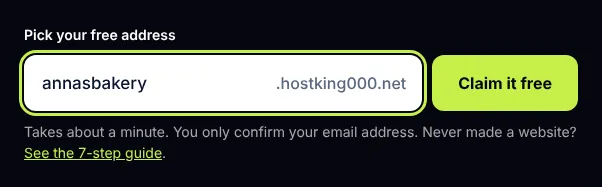
Type your name and click Claim it free. Fill in your name, email and a password, then click the link in the email we send you.
Use the name of your business, project or yourself. Short and easy to say out loud works best.
-
Pick a starting design 2 minutes
Choose the design closest to what you want. It is only a starting point: you can change the colours, text, photos and even the whole design later.
WordPress is installed for you with that design, usually in under a minute.
-
Open WordPress 1 minute
In your hostking000 account, click Log in to WordPress. You go straight in, with no second password to remember.
The black menu on the left is the WordPress dashboard. You only need three items from it: Pages, Appearance and Settings.
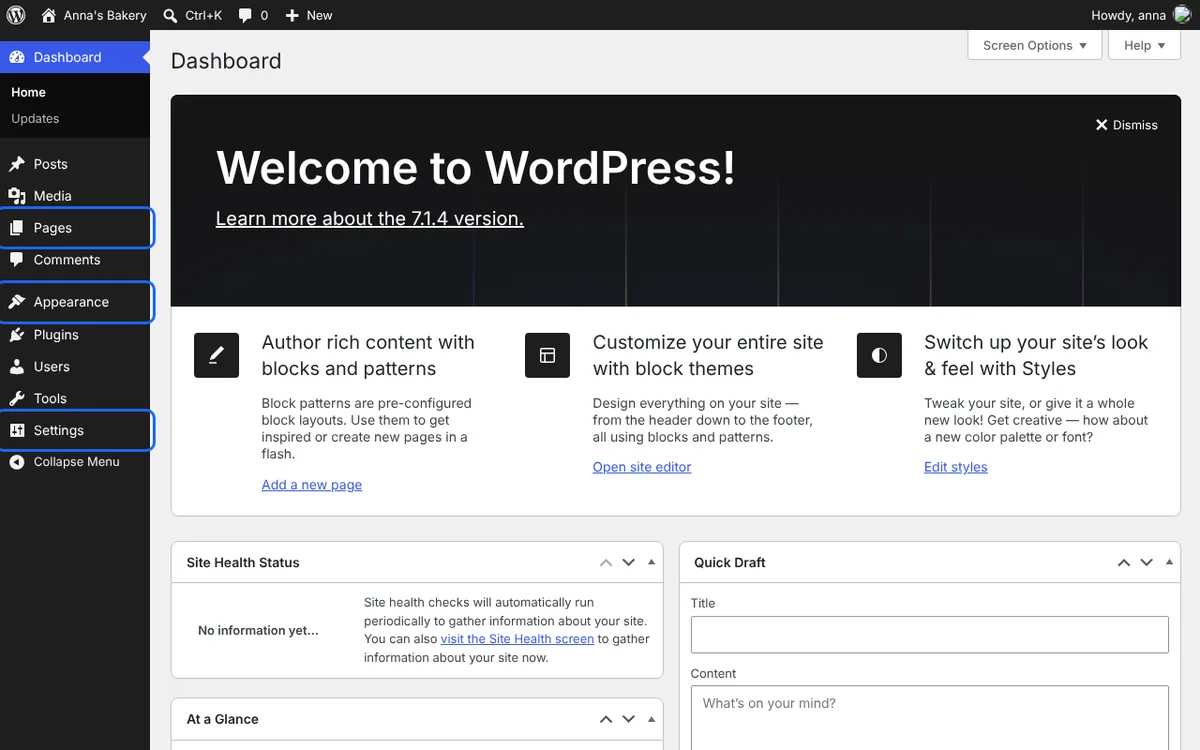
The WordPress dashboard. The three menu items you need are marked. -
Give your website its name 2 minutes
Go to Settings → General. Fill in:
- Site Title: your business or project name, such as Anna's Bakery.
- Tagline: one short line about what you do, such as Fresh bread and cakes, baked daily.
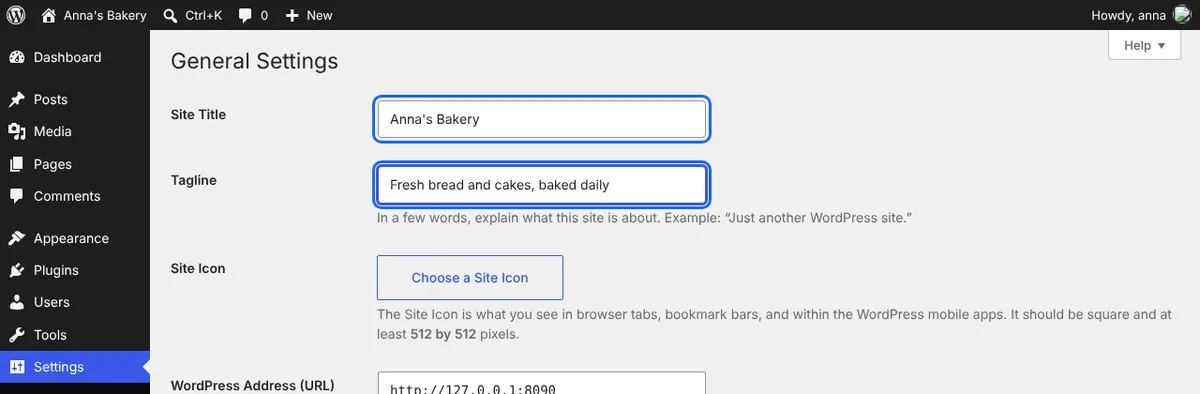
Settings, General: fill in Site Title and Tagline. Click Save Changes at the bottom. Google and browser tabs show these words.
-
Make the home page yours 10 minutes
Go to Pages and click Home (or the page marked "Front Page"). The page opens in the editor, looking much like it will to visitors.
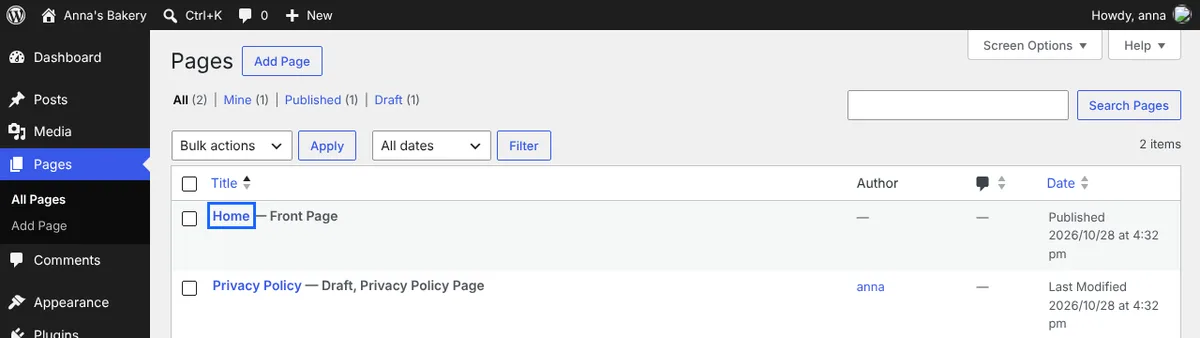
Pages: click Home to edit your home page. - Change text: click on any text and type over it.
- Change a photo: click the photo, then Replace, and upload your own.
- Add something new: click the + button, then pick Paragraph, Image, Button or Heading.
- Remove something: click it, then the three dots, then Delete.
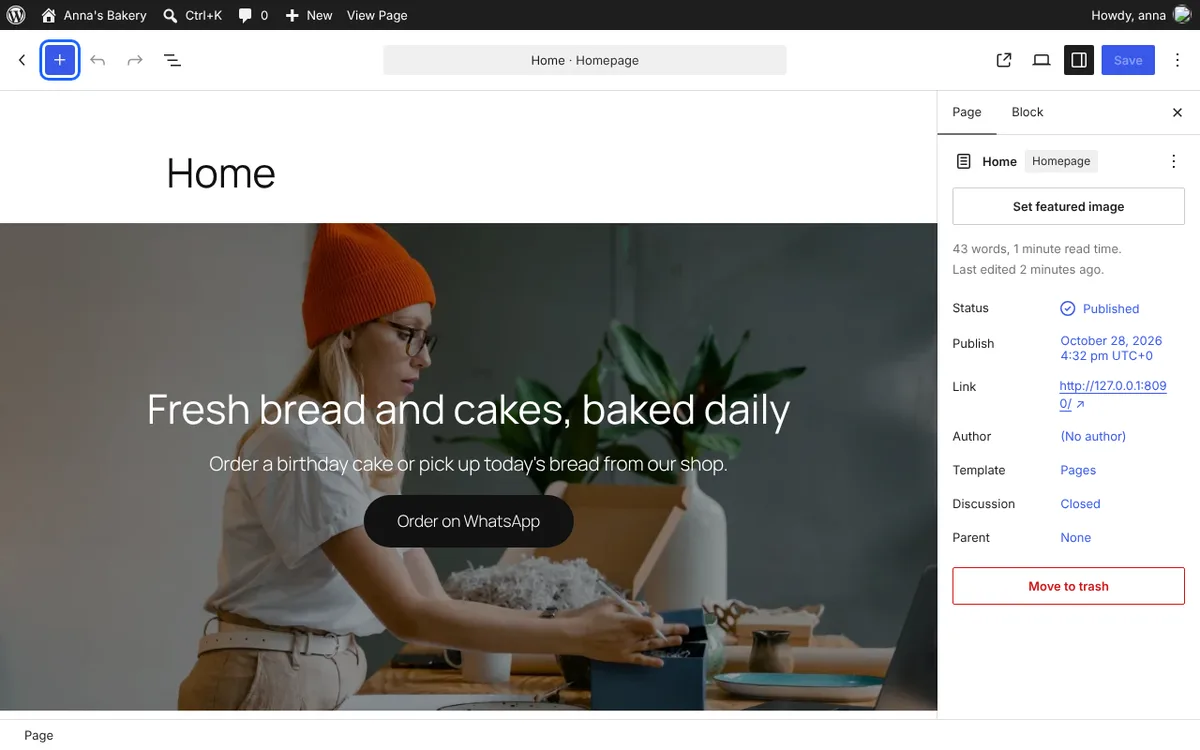
The editor. Click any text to change it. The + button (marked) adds new things. 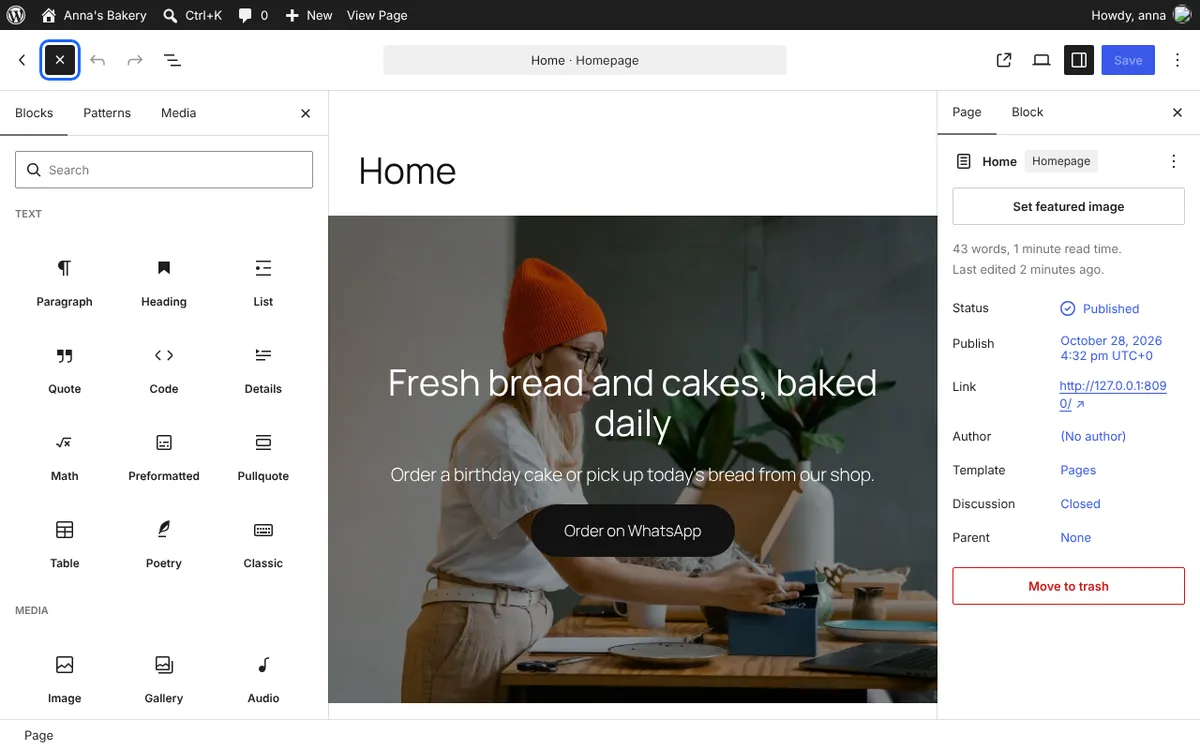
After clicking +: pick Paragraph for text, Image for a photo, Button for a link. When it looks right, click Save (or Update) in the top right corner. Use Preview first to see it as visitors will.
Say who you are, what you offer and how to reach you, in plain words. That is all a first home page needs.
-
Add your other pages 10 minutes
Most small websites need only two more pages:
- About: who you are and why people can trust you.
- Contact: your phone number, email address, WhatsApp link and where to find you.
Go to Pages → Add Page, give it a title, add your text, and click Publish.
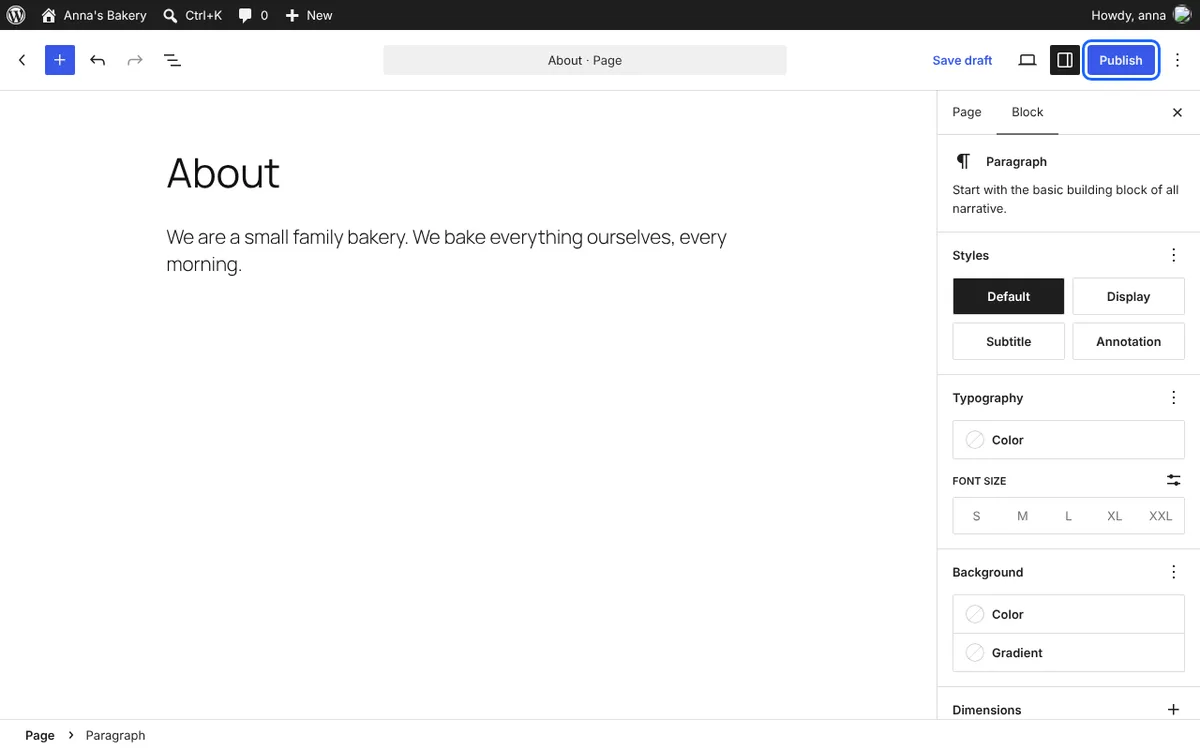
A new About page. Click Publish (marked) when it is ready. To show the new pages in your menu, go to Appearance → Editor → Navigation (or Appearance → Menus on some designs) and add them.
Free websites cannot send email, so contact forms will not reach you. Put your email address, phone number or a WhatsApp link on the Contact page instead.
-
Share your website 1 minute
Open your address, for example annasbakery.hostking000.net, on your phone to check it. Then share it: on WhatsApp, on social media, in your email signature and on your business cards.
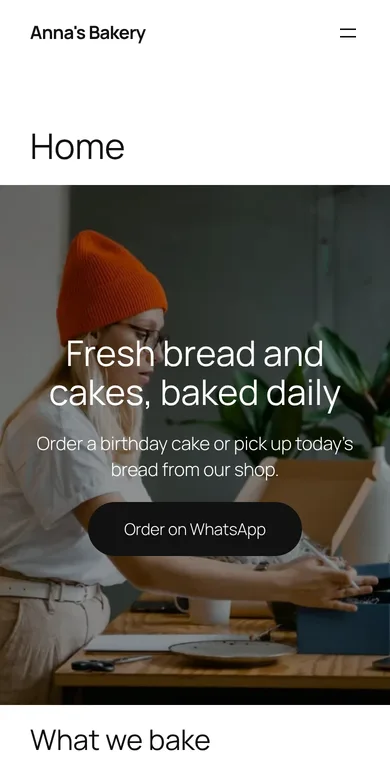
Your website on a phone. That is it. Your website is online.
Good habits for later
- Keep it up to date. When WordPress shows updates under Dashboard → Updates, run them. Out-of-date plugins are the most common way websites get hacked.
- Use few plugins. Only add a plugin when you need it, and delete the ones you do not use.
- Use small photos. Photos straight from a phone can be 5 MB each. Smaller photos keep your site fast and within the 1 GB space.
- Log in at least once a month. Free websites that are not used for 30 days are paused, so the servers stay fast for everyone.
Questions
- Do I need to know code?
- No. Everything in this guide is done by clicking and typing.
- Can I use my own domain name instead?
- Yes. Point a domain you already own to your free website, or use the free hostking000.net address.
- Can I get email on my website's domain?
- Not on the free plan. Hostking's paid plans include email accounts on your own domain, daily backups and live chat help, and we move your website across for you.
- I am stuck. Where do I get help?
- Use the help articles in your hostking000 account. Free hosting does not include live support.
Ready? It takes about a minute to start.
Claim your free website